


ACE PORTAL | ACH Account Set Up

The ACE Secure Data Portal is U.S. Customs & Border Protection’s online system used by importers to manage customs-related information. Through the ACE Portal, importers can view entry data, track refunds, receive CBP notifications, and authorize electronic ACH refunds directly to their bank account. An active ACE Portal account is required for CBP to issue refunds electronically.

What is Ace Portal?
What You Need Before You Create an Account
Before applying, confirm the following:
Your company does not already have an ACE Portal account
Your CBP Importer Identity Form (CBP Form 5106) is current
You have your Importer of Record (IR) number(s) available
Note: Log into your account at least once every 45 days. This helps prevent your account from being locked.
Helpful Links
Applying for an Ace Portal Account
Step 1: Application Location
This step officially creates your company’s access to CBP’s ACE Secure Data Portal.
CBP now uses an online application to onboard importers and link their Importer of Record numbers.
Key points:
Requests a new ACE Portal Top Account
Attaches an Importer sub-account view tied to your company’s Importer of Record number(s)
Starts CBP’s automated approval process
Step 2: Provide Required Company Information
CBP uses this information to verify your company and assign the correct access and permissions.
You will be asked to enter:
Legal company name and EIN
Business address and contact details
Full 10-digit IR number (with suffix) for each number your company uses
Trade Account Owner (TAO) details (name, role/title, email, and phone number)
Primary Point of Contact (POC) information (Name, Phone number, email)
Step 3: Receive ACE Portal Credentials
Once the application is reviewed and approved, CBP will issue login credentials.
Approved users will receive an email with instructions to access the ACE Secure Data Portal.
Enroll in ACH Refunds
This final step authorizes CBP to send refunds directly to your bank account.
After logging into the ACE Secure Data Portal:
1. Select Accounts>Importers
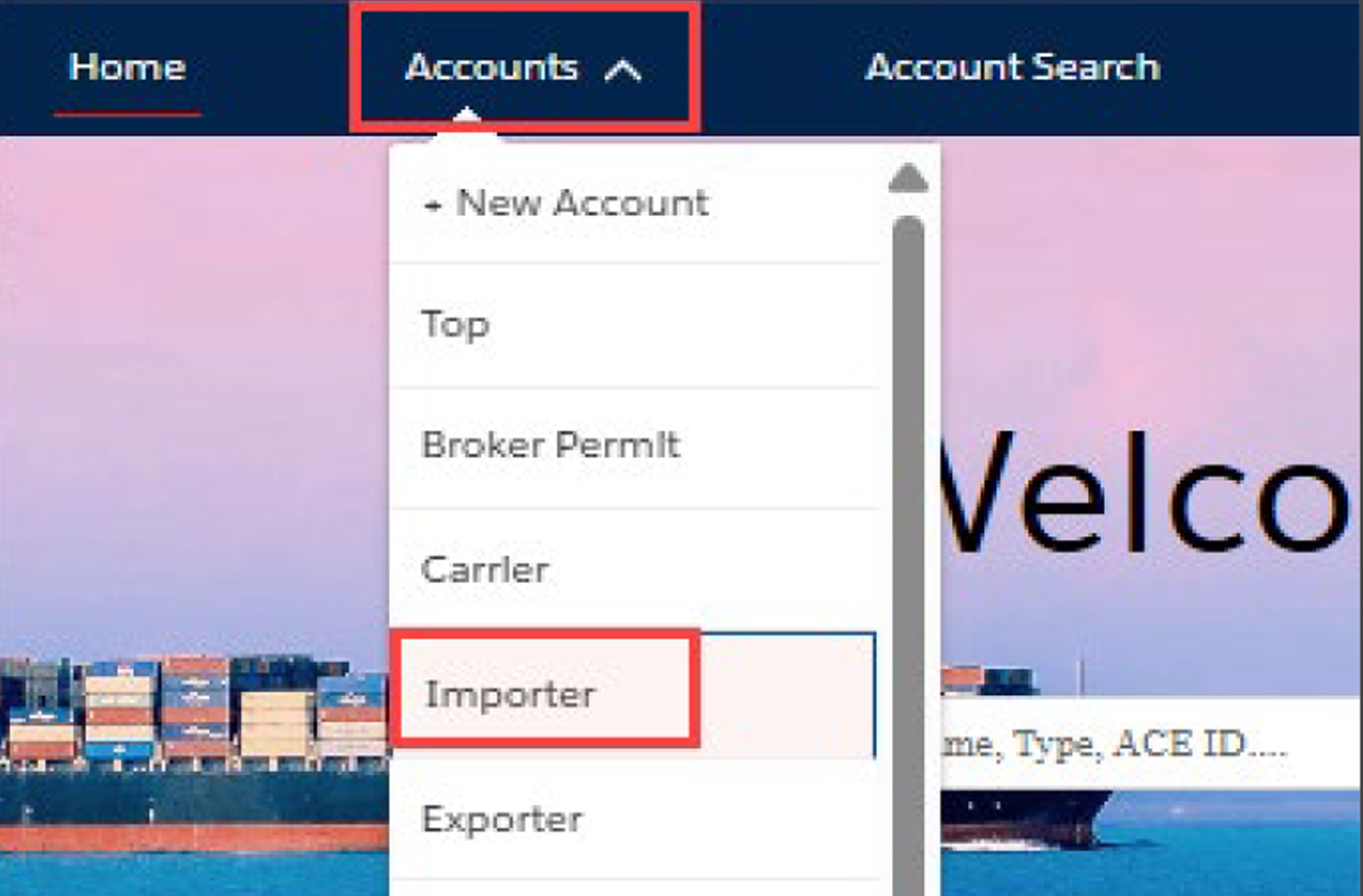
Image Source: CBP
2. In the Importers menu select your account name

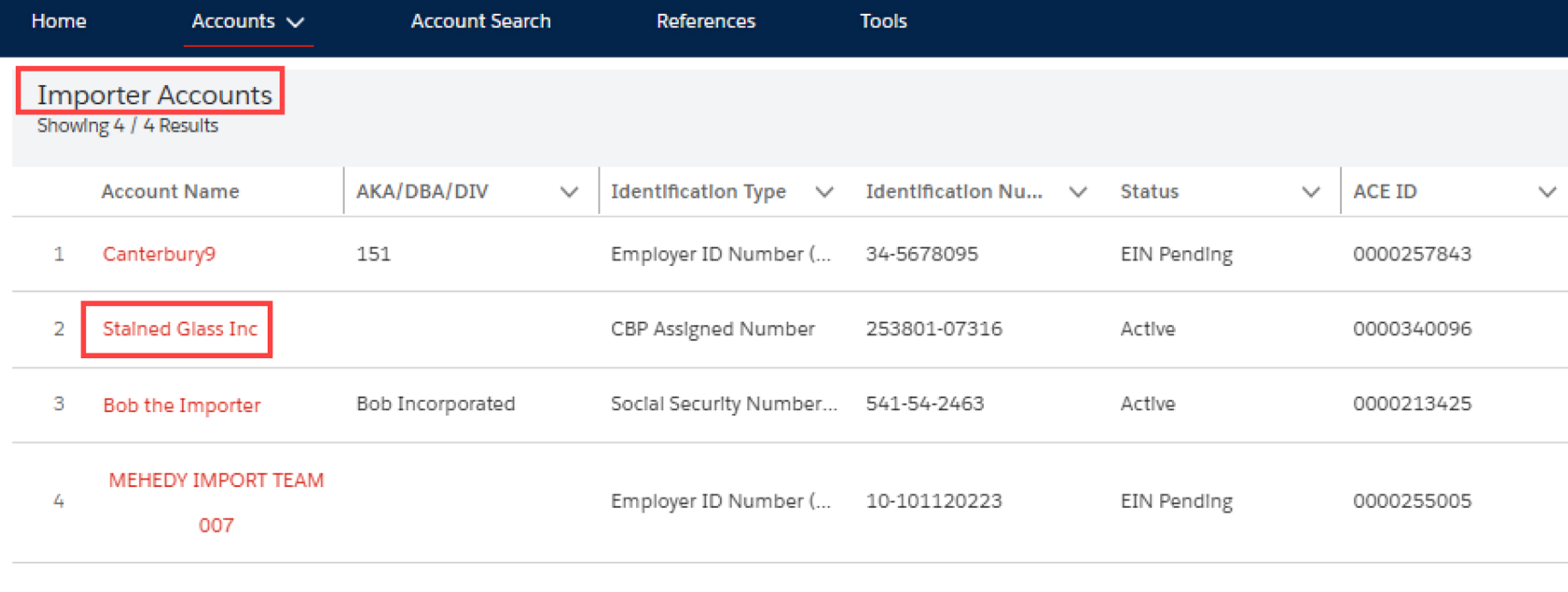
Image Source: CBP
3. In your account name page, choose ACH Refund Authorization
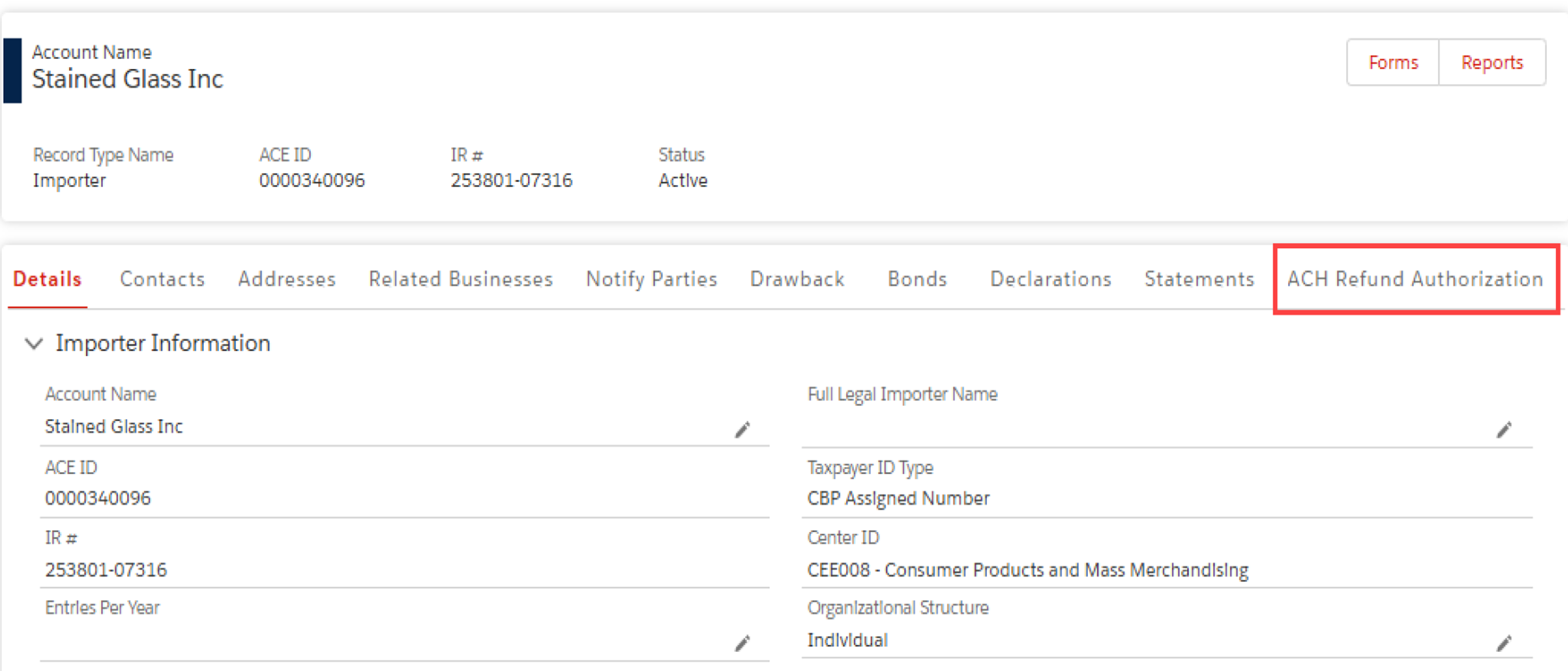
Image Source: CBP
4. Click on the “Add ACH Info” Button

Image Source: CBP
Note: A warning message will display if no ACH data is found.
5. Enter your banking information and submit.
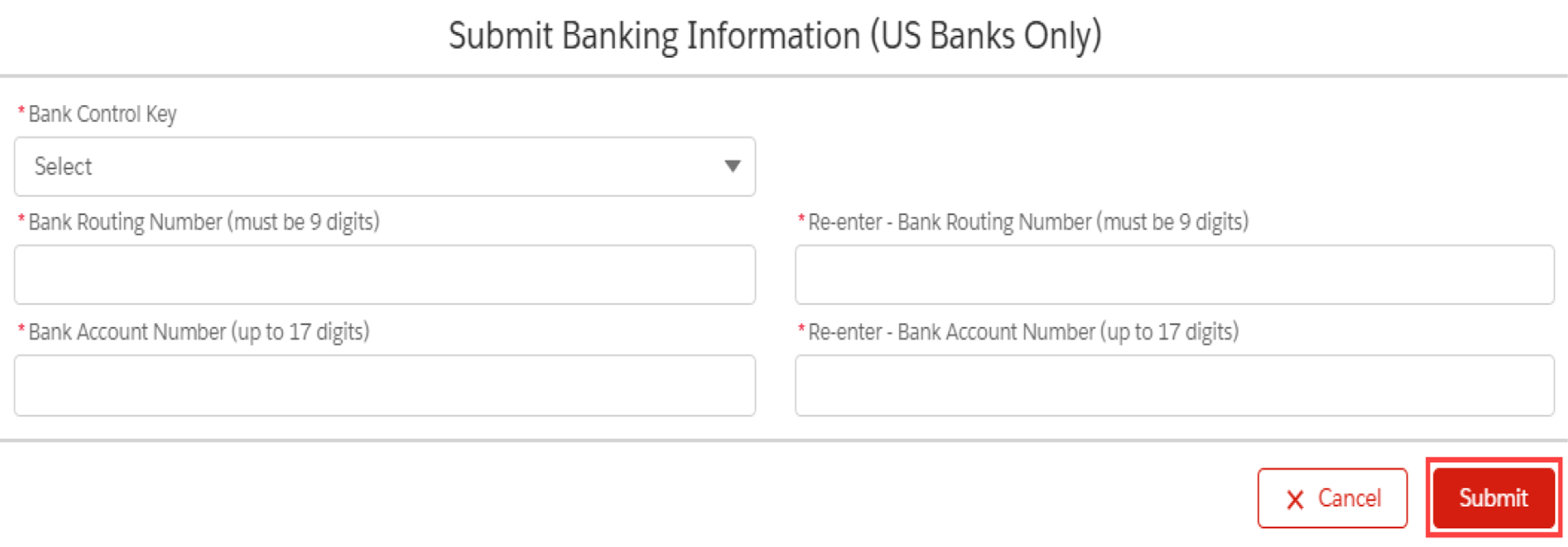
Image Source: CBP
6. After receiving the “Success” message. Return to the screen in step 4 and click the button “Get Info/Refresh” to view account information.

When you're working with customs, it's a good idea to work with an experienced forwarder.
At Juno, our skilled team is here to help you navigate Customs and ensure everything goes without a hitch!